Connect your channels
A channel is one social account Zoomclap posts to, such as a Facebook Page or an Instagram professional account.
Connect a channel
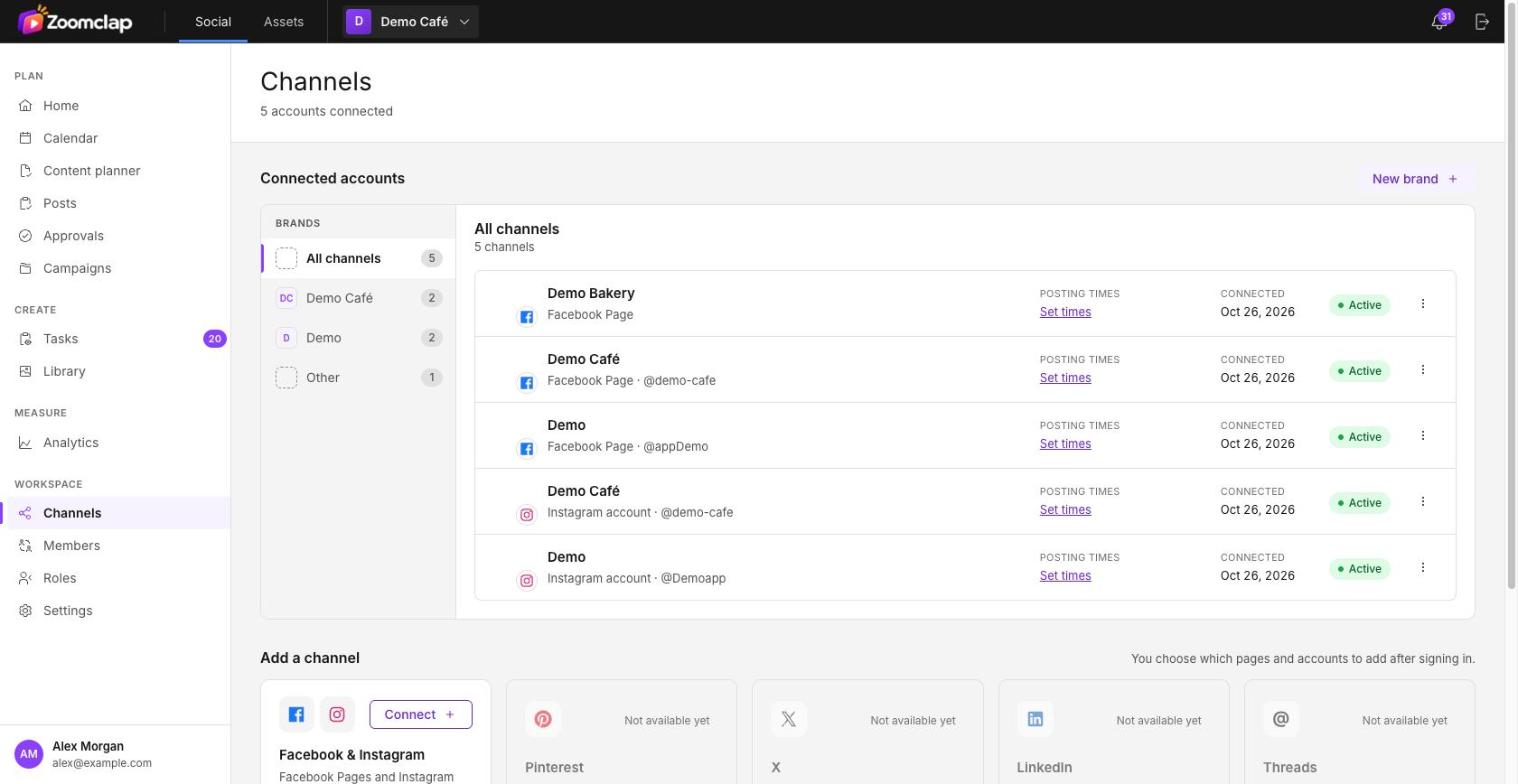
- Go to Channels. Under Add a channel, choose Connect on Facebook & Instagram.
- Sign in with the Facebook account that manages the page.
- Choose the pages and Instagram accounts to add to this workspace.
- Optionally put each channel in a brand.
Zoomclap never sees your password. The network gives Zoomclap permission to post, and you can take that permission back from the network at any time.
Supported networks
- Facebook Pages
- Instagram professional accounts (business or creator), linked to a Facebook Page
Other networks are shown as Not available yet.
Posting times
Each channel can have posting times used by the queue. Choose Set times on the channel in Channels.
Reconnect
Networks expire access from time to time. When a channel needs reconnecting, it is marked on the Channels page. Choose Reconnect and sign in again. Scheduled posts stay scheduled.
Remove a channel
Removing a channel deletes Zoomclap's access and takes its scheduled posts off the schedule. A channel that a client connected can't be removed by the team. See Clients and their channels.